Give your AI agents live aviation data with the AirNav Radar MCP server
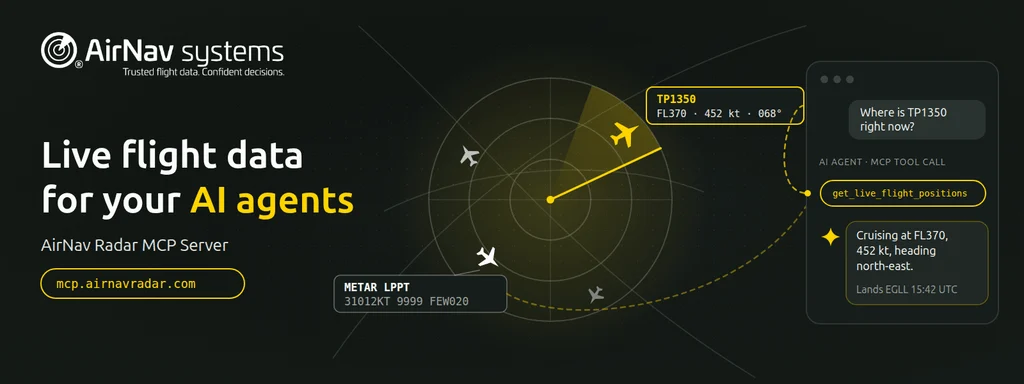
AI assistants are good at reasoning about flights, weather and airports, but they don’t know what is in the sky right now. The new AirNav Radar MCP server fixes that: it connects Claude, ChatGPT, Gemini and other AI agents directly to the AirNav Radar On-Demand API, so they can look up flights, METARs, NOTAMs, traffic statistics and much more valuable aeronautical information.
MCP (Model Context Protocol) is the open standard AI applications use to plug in external tools. Instead of writing an integration for each AI provider, you point the AI app at one URL and it discovers what it can do: search flights, read a TAF, list NOTAMs, and so on.
The server is live at https://mcp.airnavradar.com/mcp. It exposes multiple read-only tools generated from the On-Demand API, and it uses the API token you already have.
What agents can do with it
You ask in plain language; the agent picks the tools, fills in the parameters and combines the answers. Five examples:
| You ask | Tools the agent calls | What you get back |
|---|---|---|
| “Brief me on the weather and notices for a Lisbon to London Heathrow departure this afternoon.” | get_metar, get_taf and get_notams for LPPT and EGLL | Current conditions, the forecast for the departure window, and the NOTAMs that matter, summarized as one briefing |
| “Where is flight TP1350 right now, and when will it land?” | get_live_flight_positions filtered by flight ID | Live position, altitude and ground speed, plus the estimated landing time, gate and any delay reason |
| “Which flights crossed this area below 10,000 ft between 10:00 and 11:00 UTC?” | geosearch_flights with a bounding box, belowAltitude and a time window | A list of flights, with paths if you ask for them, ready for a noise or airspace review |
| “Which North Atlantic Tracks are published today, and which suit an eastbound crossing?” | get_nat_tracks | Today’s tracks with their waypoints, explained in plain words |
| “Compare Ryanair’s and easyJet’s traffic statistics.” | get_airline_statistics for RYR and EZY | Side-by-side statistics with a short comparison |
The agent also chains tools without being told how. For a question like “Is anything unusual happening at Frankfurt?” it can read the METAR, the NOTAMs and the live traffic around the airport, then put them together.
Every tool call is a regular On-Demand API request: it uses your token and your account’s credits, exactly as if your own code had made it.
Get connected
You need two things:
- The server URL:
https://mcp.airnavradar.com/mcp(MCP over Streamable HTTP). - Your On-Demand API token, sent as an
Authorization: Bearer <token>header.
The MCP server stores no credentials. It passes your token straight to the On-Demand API on each call, so access, rate limits and credits work exactly as they do for your existing integration. To check that the server answers before you configure anything:
curl -s https://mcp.airnavradar.com/mcp \
  -H "Content-Type: application/json" \
  -H "Accept: application/json, text/event-stream" \
  -d '{"jsonrpc":"2.0","id":1,"method":"tools/list"}'
The reply lists every tool with its description and parameters. Listing tools needs no token; calling them does.
Connect your AI provider
In every example below, replace <your-api-token> with your On-Demand API token, or keep it in an environment variable as shown.
Claude (claude.ai and Claude Desktop)
- Open Settings → Connectors and choose Add custom connector.
- Name it
AirNav Radarand enter the URLhttps://mcp.airnavradar.com/mcp. - Choose No sign-in, then under Request headers add
Authorizationwith the valueBearer <your-api-token>.
Request headers are a beta feature that the organization owner sets up. To change the token later, remove the connector and add it again.
Claude Code
claude mcp add --transport http airnav-radar https://mcp.airnavradar.com/mcp \
  --header "Authorization: Bearer $AIRNAV_API_TOKEN"
Claude API (your own application)
The Messages API connects to the server for you through the MCP connector, so your code has no tool loop to write:
import os
import anthropic

client = anthropic.Anthropic()

response = client.beta.messages.create(
    model="claude-opus-5-5",
    max_tokens=16000,
    betas=["mcp-client-2025-11-20", "server-side-fallback-2026-07-01"],
    fallbacks="default",
    mcp_servers=[{
        "type": "url",
        "url": "https://mcp.airnavradar.com/mcp",
        "name": "airnav-radar",
        "authorization_token": os.environ["AIRNAV_API_TOKEN"],
    }],
    tools=[{"type": "mcp_toolset", "mcp_server_name": "airnav-radar"}],
    messages=[{"role": "user", "content": "Give me a weather briefing for LPPT and EGLL."}],
)

if response.stop_reason != "refusal":
    print("".join(b.text for b in response.content if b.type == "text"))
OpenAI API (Responses API)
import os
from openai import OpenAI

client = OpenAI()

resp = client.responses.create(
    model="gpt-6-astra",
    tools=[{
        "type": "mcp",
        "server_label": "airnav_radar",
        "server_url": "https://mcp.airnavradar.com/mcp",
        "authorization": os.environ["AIRNAV_API_TOKEN"],
        "require_approval": "never",
    }],
    input="Which North Atlantic Tracks are published today?",
)

print(resp.output_text)
All AirNav Radar tools only read data, which is why the example skips approval with require_approval: "never". Leave approval on if you prefer to confirm each call.
ChatGPT’s own app connects custom MCP servers with OAuth sign-in or no authentication. It cannot send a fixed token yet, so use the API route above for OpenAI models.
Gemini CLI
gemini mcp add --transport http \
  --header "Authorization: Bearer $AIRNAV_API_TOKEN" \
  airnav-radar https://mcp.airnavradar.com/mcp
Or add it to ~/.gemini/settings.json yourself:
{
  "mcpServers": {
    "airnav-radar": {
      "httpUrl": "https://mcp.airnavradar.com/mcp",
      "headers": { "Authorization": "Bearer <your-api-token>" }
    }
  }
}
Any other MCP client
Most MCP-capable tools (Cursor, VS Code, LangChain, the OpenAI Agents SDK and others) take the same two settings: a Streamable HTTP URL and an Authorization header. Look for “remote” or “HTTP” MCP servers in their settings.
Good practice
- Treat the token like a password. Keep it in an environment variable or your platform’s secret store, never in a prompt, a shared config file or a URL.
- Watch your credits. Agents can make several calls per question. Ask your agent to run
billing_statusorbilling_usageto see where you stand. - Be specific in prompts. ICAO codes (LPPT, EGLL), flight numbers and UTC times get you faster, cheaper answers than vague descriptions.
- Search tools need a time window. Flight searches are always limited by date, so include “today”, “between 10:00 and 11:00 UTC” or a date range.